Everything Obelus has, one feature at a time: what it does, the key that opens it, and the settings that change it. Why it is shaped this way is on the front page; every key, command and setting in one table is in the reference.
Under each feature, a line says how to get to it: its default key, its command, which you can type into the palette (Ctrl+p), and the settings that change it. Every key can be rebound.
01Opening and switching
The file list
The project's files as a tree, opened down to the file you are reading, with a preview of the selected file underneath. Start typing and the tree becomes a flat list of every path, filtered as you type; clear the query and you are back on the row you left. Rows are coloured by what Git says about them.
Enter on a directory opens or closes it in place; on a file it opens the file. Double-clicking a row does what Enter does, here and in most other lists
While nothing is typed, Right opens a directory and steps into one already open; Left closes it, or goes up to the directory a row is in
Alt+i shows the files the project ignores, Alt+. the hidden ones (names starting with a dot, and .git)
Alt+n renames or moves the selected file or directory
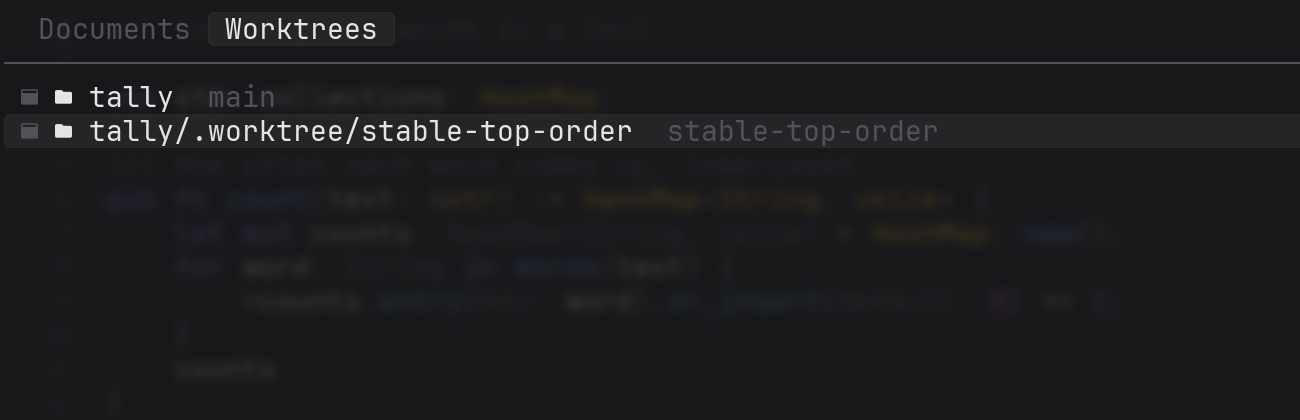
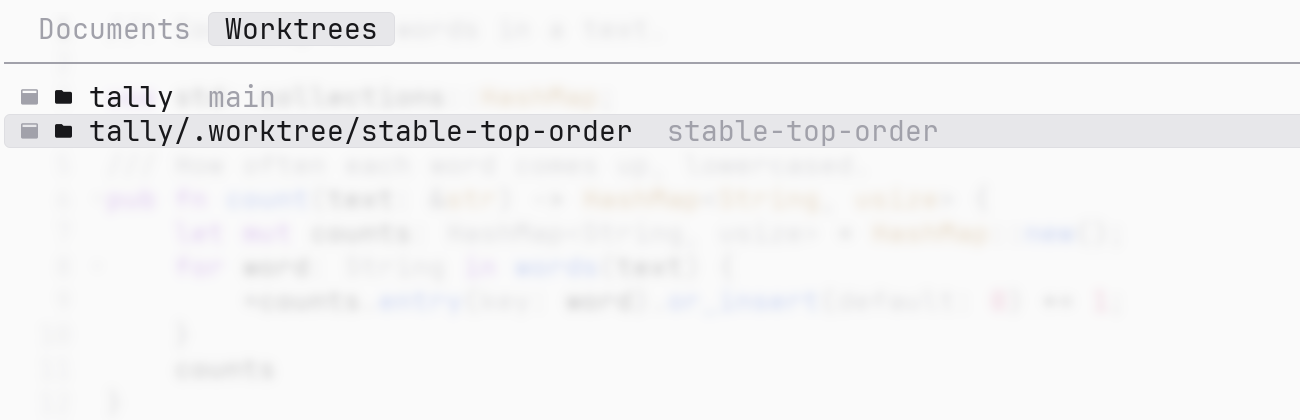
Everything open — files, conversations, the notes, terminals — in the order you opened it, with a preview. A • marks a file with unsaved changes, a conversation says whether its agent is working, and the notes say how many are still open. Ctrl+w closes the row you are on and leaves the list open. When the repository has another worktree, Tab goes to the Worktrees tab.
KeyF2Commandswitch-document
Changed files
The file list's other tab: every file Git says has changed since the last commit, with how many lines were added and removed beside it. A renamed file says what it used to be called, and a deleted file opens as the last commit's version of it. With nothing changed, the key does nothing.
KeyF3Commandopen-changed-file
Projects and the welcome screen
Name a file and its repository is the project; name a directory and that is the project. Start Obelus with nothing to go on — from a desktop menu, say — and it asks which project: the last twenty you chose there, newest first, or a path typed with completion, which stops at a project. close-project lets go of everything and comes back to that page. With nothing open, the welcome screen shows the keys to start from, read from your own key table, so a key you rebind is the key it shows.
Commandclose-project
Coming back to what was open
Each worktree remembers what was open in it — the files, with their cursor and scroll, the notes, the conversations, and which one was in front — and opens them again next time. A commit's version, a terminal or a file that has gone is not reopened. When several windows share a tree, the last one to change what is open wins.
Settingreopen
New, rename, save, close
new-file creates the file on disk straight away, with any directories it needs, and opens it
rename-file renames or moves the file, and asks the language server to update whatever refers to it; those edits arrive unsaved, so you can read them and undo them
Ctrl+s looks at the disk first. If something else changed the file since you opened it, you choose whether to save yours over it or take what is on disk (undo brings yours back); if it was deleted, whether to write it back or let it go
Ctrl+w asks about unsaved changes before it closes; Ctrl+r reads the file from disk again
A file that changes on disk — the agent wrote it, a formatter ran, the branch moved — reloads by itself and keeps your place, unless you have unsaved changes; then the status row says it moved or was deleted, and nothing of yours is thrown away
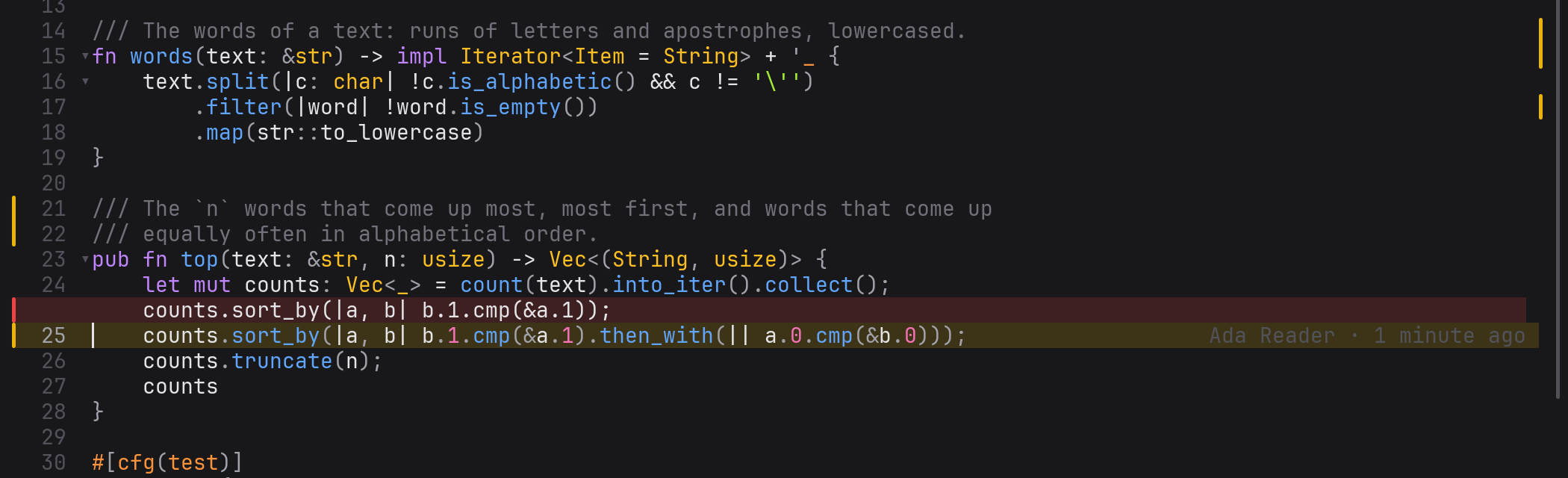
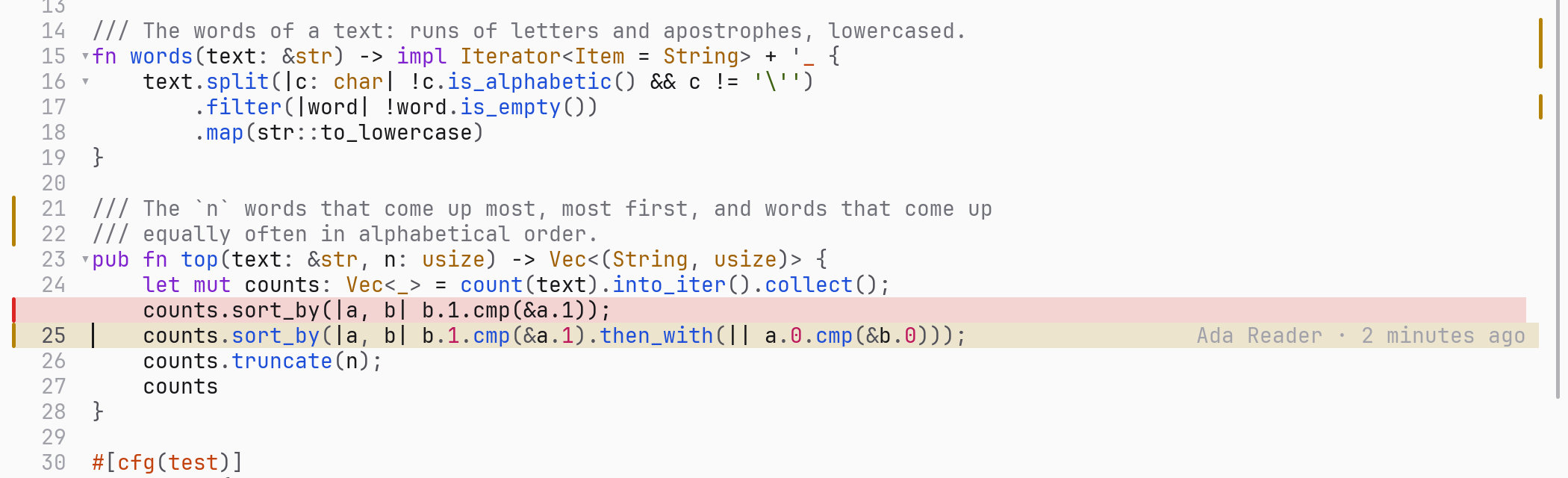
From left to right: a margin marking the lines Git sees as changed, line numbers, a column of fold marks, the text, a one-column map of where the file's changes are, and the scrollbar. The change margin, the fold column and the map are only there when there is something to show. At the end of the line the cursor is on, who last changed it and when.
Long lines run off the right edge unless you turn on wrapping, which breaks them between words
The mouse wheel scrolls the view and leaves the cursor where it is; the paging keys move the cursor
Click to place the cursor, double-click for a word, triple-click for a line, drag to select; click a change mark to open that change
Settingswraptab_widthblame_margin
Folding
Fold the block the cursor is in, or every block in the file. What folds comes from the indentation, so it works the same in every language, and a folded block keeps its closing bracket on screen: if ready { … }. Click a mark in the fold column to fold there.
KeyAlt+fCommandsfoldfold-allunfold-all
Markdown and log preview
A markdown file laid out for reading: headings, lists, quotes, tables, and code blocks highlighted in their own language. A log file is laid out in columns — Obelus's own log, syslog, and web server access logs — recognised from its lines rather than its name. The same key goes back to the text.
KeyCtrl+dCommandtoggle-preview
Syntax highlighting
Two dozen languages through tree-sitter: Rust, Go, C, C++, Python, JavaScript, TypeScript, TSX, Java, C#, Ruby, PHP, Scala, Swift, Haskell, OCaml, Julia, Agda, Bash, HTML, CSS, JSON, TOML, YAML and Markdown. Code inside code is coloured too — a fenced block in markdown, a script in HTML. With a language server running, its semantic colouring is laid on top.
How much code there is
The project's lines counted by language and by file — files, lines, code, comments, blanks, biggest first — skipping what .gitignore ignores. The Files tab is a tree you can walk down and open a file from, with Right and Left opening and closing it as in the file list; choose a language first to see only its files.
Commandcount-lines
03Finding
Search: this file, every file, every name
One search screen with three tabs, and a key for each: the file you are reading, every file in the project, and the names the language server knows. What you typed carries over when you switch tab, and a preview under the list shows each hit in place. Text is matched as written, not fuzzily.
Alt+r for a regular expression, Alt+w for whole words, Alt+c to match case (by default, typing a capital turns it on)
On the names tab, Alt+o takes in names from outside the project, like your dependencies
The project search follows the same ignored and hidden files settings as the file list
Every function, type and constant this file defines, nested the way they are in the code, opened on the one you are in. It comes from the language server where one is running and from the syntax tree where not, so it works while the server is still indexing too.
KeyF7Commandshow-outline
Lines, brackets, back and forward
Ctrl+l goes to a line by number
Alt+m goes to the bracket that matches the one under the cursor, skipping brackets in strings and comments
Alt+← goes back to where you jumped from, and Alt+→ forward again — across files, definitions, search results and changes
Commandsgo-to-linego-to-bracketgo-backgo-forward
04The language server
Servers
Obelus asks the language server you already have, if it is on your PATH: rust-analyzer, gopls, clangd, pylsp, typescript-language-server, bash-language-server, and VS Code's servers for CSS, HTML and YAML. It installs none of them, and starts none until you turn on language_servers in the settings: an agent can already tell you where a thing is defined and what calls it, and a server is another process per language and per window. Turned on, a server starts when you open a file of its language in the project; with it off, restart-server still starts the one for the language of the file in front of you. The status row shows its name with whether it is starting, ready or gone, and a spinner while it is indexing. Without one you still have highlighting, the outline, folding and search.
F11 goes to where the name under the cursor is defined. Alt+Enter lists every question the server can answer about it — the type's definition, the implementations, the references, the calls — and only those. One answer goes straight there; several open a list with a preview.
A tree of the calls into the function under the cursor, and on the other tab the calls out of it. Enter opens a level; a call already further up the tree is marked ↩ and jumps to it instead of going round again.
Commandshow-calls
Hover, signatures, completion
Alt+h, or resting the mouse on a word, shows what the server says it is
The parameters of the call you are typing appear after (, with the one you are on marked; Alt+s brings them up for a call already written
Completion opens as you type; Enter takes one, and Tab walks the placeholders a snippet leaves
The types and parameter names the server infers are drawn in the line, and can't be selected or copied, because they aren't in the file
Alt+a lists the fixes and changes the server offers for this line or the selection, quick fixes for its problems among them. Alt+r renames a name everywhere: every file it touches is opened and changed but not saved, so you read the rename before you write it, and undo takes it back. Formatting and the server's whole-file fixes on save are there, and off until you turn them on.
Every problem is underlined, and the message for the line the cursor is on opens under it. Alt+e lists them, for this file or the whole project; Alt+[ and Alt+] walk them. Obelus's own complaints go in the same list: a line in your settings it can't make sense of, a key binding that binds nothing, a theme that won't read.
Lines that differ from the last commit are marked in the margin, and a map beside the scrollbar shows where in the file they are. Alt+d opens the old lines in place, above the new ones, and closes them again; you can put the cursor in them and copy from them. Alt+n and Alt+p go to the next and previous change.
A change opened in place: the old line in red above the current one.
Who wrote this line
At the end of the line the cursor is on: who last changed it, and how long ago. Only that line, so the margin stays quiet.
Settingblame_margin
File and project history
F9 lists every commit that changed this file — through renames — and on its second tab the branches and tags. F10 lists every commit in the project, and Enter on one opens the files it changed. Each row is the subject, how long ago, and the short id; commits the remote hasn't seen yet are coloured. The preview shows the whole message and what the commit added and removed. The whole history is read in the background, so you can search all of it.
Choose a file from the history and it opens as that commit left it, with the margin marking what that commit did — against the commit before it, not against today. The status row says which commit. It is for reading: it can't be saved, and the language server is not asked about it.
Pull requests and issues
The repository's open pull requests and issues, on two tabs, through gh. A row shows the number, the title, the labels, who and when, and whether it is approved; the preview has the description, the comments, the reviews and the checks. Choosing one opens a conversation with the agent about it, ready to review the pull request or draft an answer to the issue, and sends nothing until you press Enter. Nothing goes to GitHub until you say so on a card: approve, request changes or comment; post, post and close, or post nothing.
KeyF12Commandreview-pull-request
06Notes
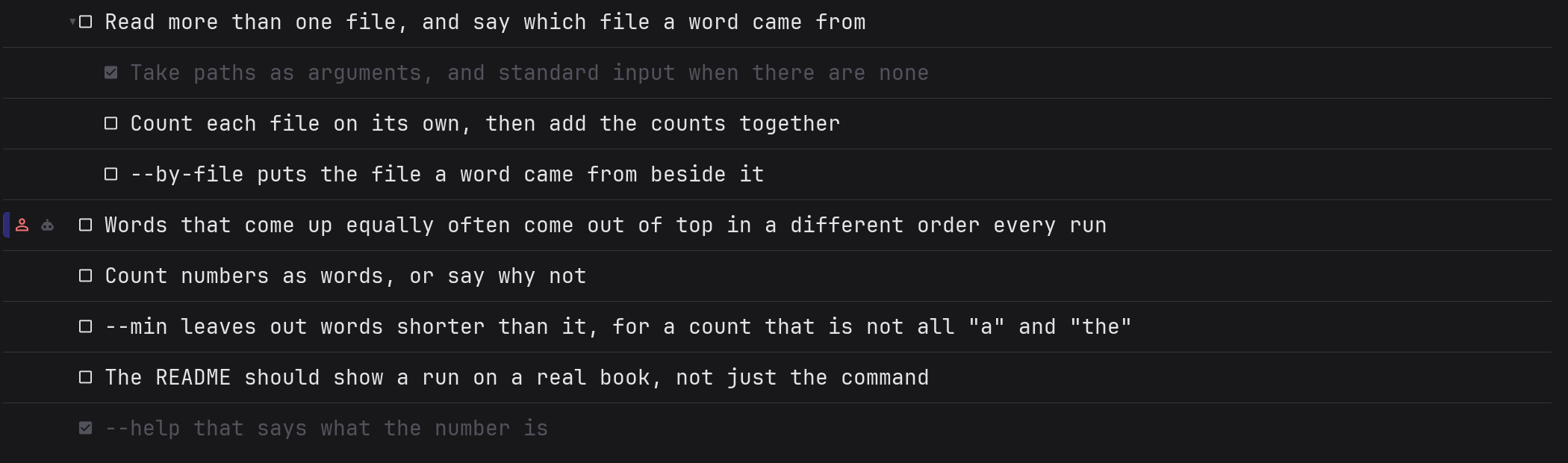
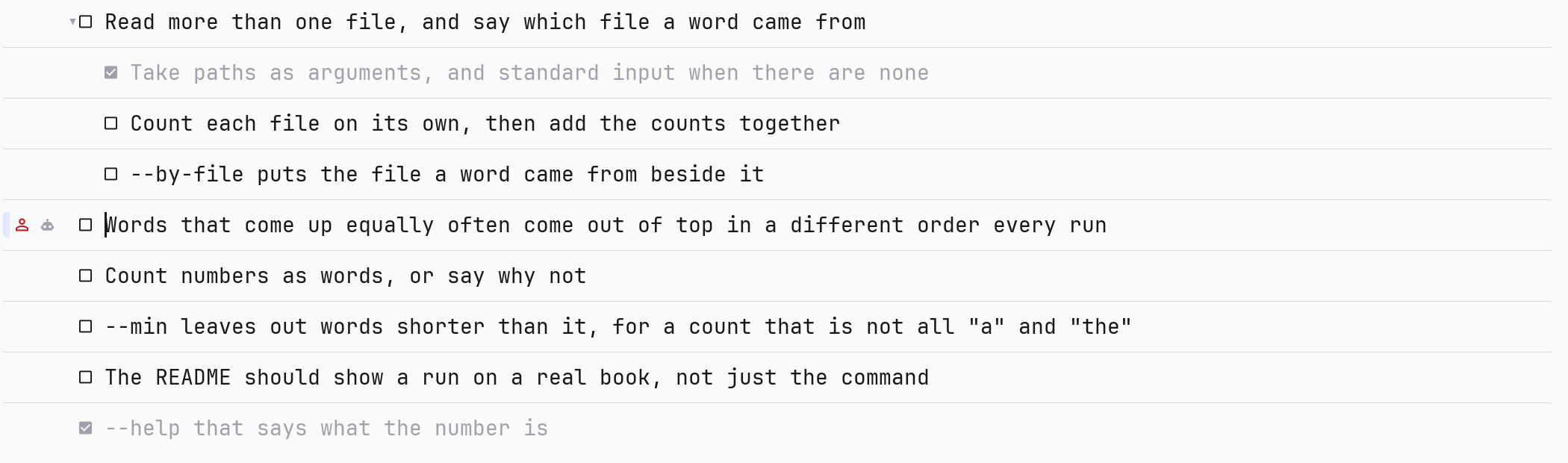
Alt+t on a line writes a note about it; Ctrl+t opens them all. A note can be about a line or about the whole project, and notes sit under other notes, four deep. A note remembers the commit it was written at, so it still finds its line after the file has changed, and says gone when the line has.
Steps the agent worked out, sitting under the note they belong to.
The page is always ready for typing: Enter starts another note, Tab puts one under the note above and Shift+Tab brings it back out
Alt+Space ticks a note; a ticked note stays on the list until you remove it
Alt+o goes to the line it points at, Alt+a opens a conversation about it, Alt+↑Alt+↓ move it
A note with a conversation is marked, and the agent is told when you change the note
Shared by every worktree
Notes live in Obelus's own directory, not in your repository, so they never end up in a commit, and every worktree of the repository sees the same list. Two windows writing at once don't overwrite each other. A note whose conversation is open in another window is read-only here, for you and for the agent, until that window lets go of it.
KeysAlt+tCtrl+tCommandstodo-addtodo
07The agent
Obelus has no model of its own. It talks to an agent you choose over ACP, the Agent Client Protocol, and offers it a few tools of its own over MCP.
Choosing and installing one
The Agents tab of the settings page lists every agent in the ACP registry, with its description, version and licence. Enter on one installs it — through npm, uv, or a download checked against its hash — updates it, or makes it the one in use. The first one you install is the one in use. There is one at a time: switching stops the one running. Beside the agent, the settings page says what a new conversation starts on — its mode, its model — in the agent's own words.
Commandopen-settingsSettingsagentagents
Conversations
A conversation is a document, like a file: leave it today and take it up tomorrow. F4 lists them, newest first, under Today, Yesterday, This week and Earlier, with a new one at the top. Each row says what it was about — its note, or the pull request it reviews — and how long ago. A conversation is open in one window at a time; one another window has is shown locked. Taking one up again replays it where the agent can, and otherwise says how much came back.
A change the agent has made is one row with how many lines it added and removed: you read the change itself in the file, in the margin. A change it is asking to make shows its lines. A command it runs shows exactly what was run and everything it printed, and how it ended. Double-click a call that names a file to go there.
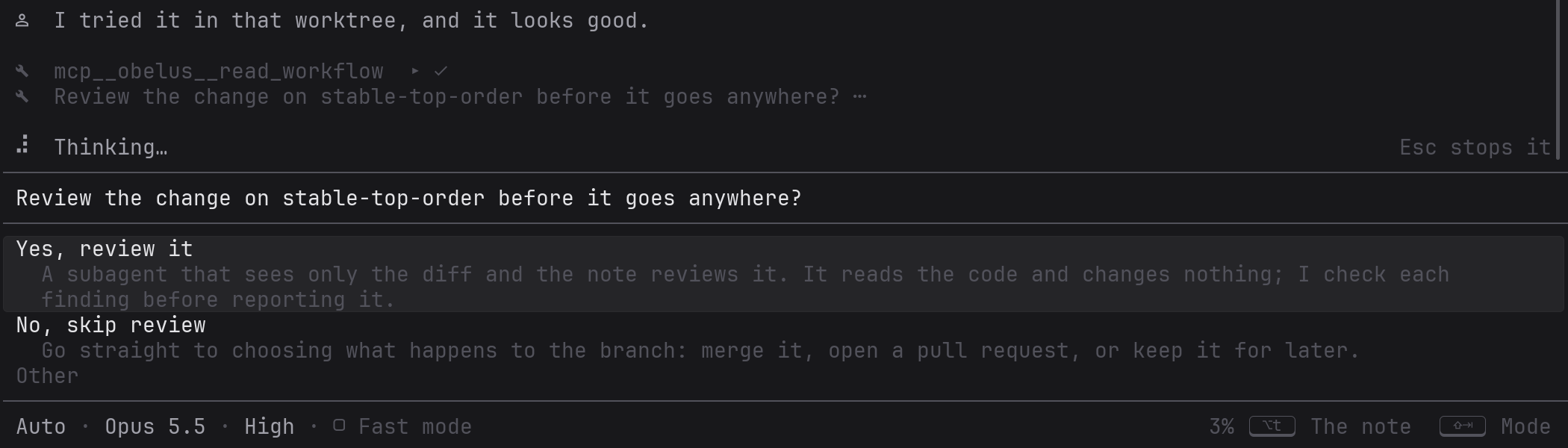
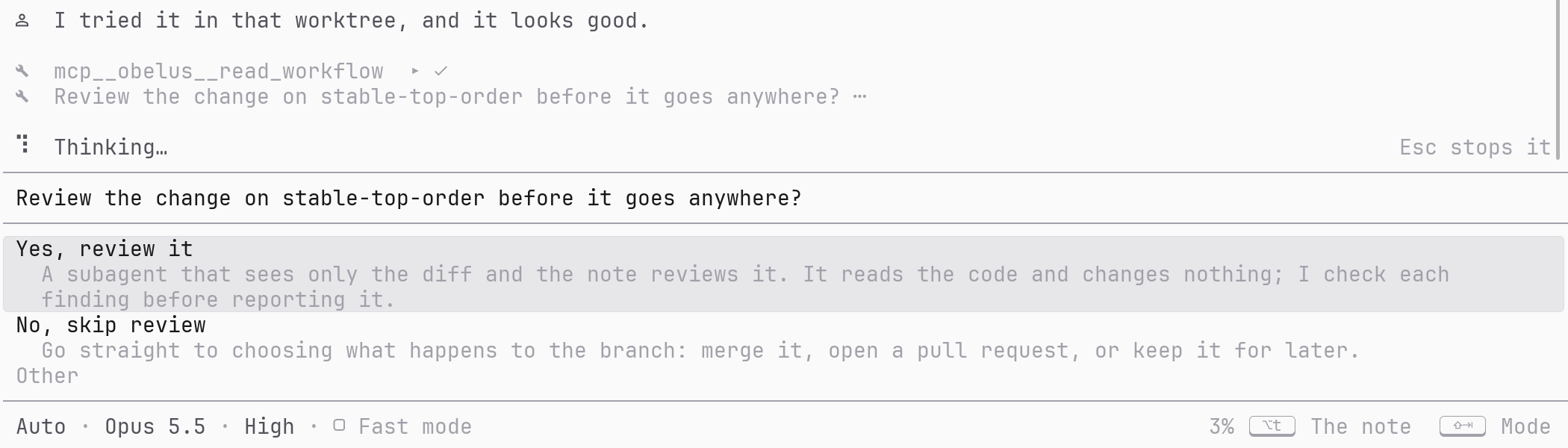
A question for you is a card: arrow keys to choose, Enter to answer.
Three or more calls of one kind in a row fold into one row until you open it
↑ past the top of the box moves a cursor into the transcript, to select and copy; Tab goes to the next row you can act on, and Enter on a call opens the file it touched
The agent's thinking is shown, not hidden away
The status row shows how full the agent's context is, and what it has cost, where the agent says
Questions on a card
When the agent asks permission or asks you something, a card takes the place of the box: a list to pick one from, a list to tick several on, a switch, a box to type in, or a number. Enter answers, and Esc gives up the whole question.
Modes, commands, waiting messages
Enter sends, and Alt+Enter or Shift+Enter starts a new line
Shift+Tab switches between the agent's own modes; / at the start of the box lists its own commands; the row under the box holds its other choices, like the model
What you send while the agent is working waits in the transcript, and goes as one message when it is done; Enter on a waiting message takes it back
Esc stops the agent, and any command it is running; Ctrl+Enter stops it and sends what is in the box
Pictures
Paste a picture into the box, drop an image file on the window, or paste a path to one in the terminal version. It is sent with your message, made smaller first if it is very large. An agent that takes no pictures says so when you add one.
Signing in
An agent that needs you signed in asks on a card how you want to sign in; one that signs in through a program runs it in a terminal of Obelus's own, where you pick an account or paste a code. Then the conversation carries on where it was.
Tools Obelus gives it
Over MCP, the agent can read your notes, add notes, tick one off, reword one, open a file on your screen at a line, read the project's workflow, and close its conversation. It asks you on a card before any of these that change something; the tools never ask by themselves. The full list is in the reference.
The workflow
What the agent is asked to do before it changes the project. feature-branch, the default: a branch in a worktree of its own, tested before and after, tried by you, reviewed, then merged or opened as a pull request — step by step on the front page. in-place: the same steps in the checkout you are reading, so every change lands in your open file and undoes with Ctrl+z. none: the agent works however it likes. A project can set its own.
Settingworkflow
08From a chat
Away from your screen, you can talk to the same conversations from Slack or Feishu (Lark) on your phone. Each conversation is a thread, and a thread you start begins one. The agent's questions arrive as buttons and lists in the chat, and pressing one is the answer.
The Remote tab of the settings page walks you through making the app on the chat's side; the tokens are kept in your system's keyring, not in a file
To pair, Obelus shows a six-character code that lasts five minutes; send it in a group the app is in, and that group and you are let in. Nobody else is answered
One window talks to the chat at a time, the one you tell to, and its status row says how the connection is
Commandsconnect-remotedisconnect-remote
Obelus with no screen
ob --headless runs Obelus on a project with nothing drawn and no terminal taken over, there only to be reached from the chat — on a machine you leave running. --connect-remote connects an ordinary window to the chat as it starts.
09Worktrees and windows
Every worktree of the repository, each with its branch, and under each a row for every Obelus open on it, saying what it is reading. In the window version, Enter on a tree opens a new window there and on a window brings it to the front, and Ctrl+Enter moves this window to the tree. In the terminal version, Enter moves this Obelus. Either way it asks about unsaved files first.
F2, then Tab: every worktree, and every window on it.
A tree deleted without telling Git says Missing. If the tree a window is on is removed under it, a page over the whole window says so, and Enter asks which project to open next.
KeysF2 then TabCommandswitch-worktree
Several windows on one project
Obelus has no split panes: to see two things side by side, you open two windows. So several on one project is normal, and they keep out of each other's way.
The notes are shared, and a note written in one window shows up in the others
A conversation is open in one window at a time, and a crash never leaves it stuck
Saving checks the disk, so one window doesn't silently overwrite another
Change the settings in one window, or by hand, and every window picks it up
Each window runs its own language server and its own agent
Build jobs shared between them
Every Obelus on the machine shares one pool of build jobs, and hands it to what it starts — the agent, the language servers, its terminals — so three windows each running cargo don't each take every core. By default the pool is half the machine.
Settingbuild_jobs
10Terminal
Your shell, in the project, as a document of its own in the open list. While a program runs it gets every key, Esc and Ctrl+c included, except the few Obelus keeps: the function keys, Ctrl+p, Ctrl+w to close it, Ctrl+q to quit, and paste.
Ten thousand lines of what scrolled away, read back with the wheel or PageUpPageDown
Drag to select what was printed, and Ctrl+c copies it; with nothing selected, Ctrl+c goes to the program
A program that uses the mouse gets it; hold Shift to select anyway
Closing it or quitting while something is running asks first
Commandopen-terminal
11Editing
There are no modes. Every key does what it does whenever you press it, the way VS Code and Emacs work and vim and helix don't: arrow keys move, Shift with them selects, Ctrl+z undoes, and typing types. Undo goes back by what you were doing — a run of typing, a run of deleting — rather than by the character. The rest is what fixing a line or two needs and no more: brackets and quotes typed in pairs, grow the selection by syntax (Alt+w), move lines (Alt+↑Alt+↓), comment them out (Alt+c), type over (Insert). No multiple cursors, no macros: big edits are the agent's job.
The clipboard
Ctrl+c, Ctrl+x and Ctrl+v go through the system clipboard, and copy with nothing selected copies the line. Ctrl+Insert and Shift+Insert work too. What you copy outlives Obelus, and in the terminal version it reaches your own machine over ssh.
Reading only
If the agent makes every change, turn your own keys off files: typing, pasting, undo and the line commands do nothing in a file, while the agent's edits still go in, saving still works, and the boxes you type messages, searches and notes into still take what you type.
Settingread_only
12Keys and settings
The command palette
Every command, by name, sorted into six tabs: files, search, code, edit, Git, and Obelus itself. Names start with what they do — open-file, show-calls — so you type the verb first. A command that can't do anything where you are is dim, and its key does nothing either. At the foot of a list with keys of its own, the ones that work right now.
KeyCtrl+pCommandrun-command
The settings page
Every setting with a line on what it does, filtered as you type, and saved the moment you change one. A project can carry settings of its own in .obelus/config.toml, laid over yours — but not the ones that are only yours to decide, like which agent runs or where your keys are. Edit either file by hand and Obelus picks it up as you save, and a line it can't make sense of is marked as a problem.
The Keys tab lists every command with each of its keys: Enter on a key, then the new one, changes it, and Ctrl+Enter adds another. A key another command has, or one Obelus never hands to the table, is refused and you are told why. For a keyboard without a row of function keys, the mnemonic layout puts those twelve on Ctrl and Alt by the letter of the word.
Settingskeys_from[keys]
Themes
dark and light are built in, and any .toml file in ~/.config/obelus/themes/ is a theme of its own, every colour optional. Comments are italic, and a theme can say which kinds of code are. Moving through the list tries each one on; Esc puts yours back.
Commandchoose-themeSettingtheme
Window or terminal
obg is a window and ob runs in a terminal, like gvim and vim: the same screens and the same keys. The window tells apart keys a terminal can't (Ctrl+i and Tab, Ctrl+m and Enter), carries its own icons, glides the cursor and lists, and shows what an input method is spelling. Its fonts and size are settings; in a terminal, they are the terminal's, and icons need a Nerd Font.
Settingsfontsfont_sizeanimationicons
Updates and logs
Once a day Obelus asks GitHub whether there is a newer version, and says so on the welcome screen and nowhere else; turn it off and nothing is sent. Its own log and the language servers' open as files, and the preview lays the log out in columns.