An editor built around my own habits — with the agent built in.
Obelus is a code editor that runs in its own window or in a terminal. It doesn't try to have every feature. It's built around how I work: you hand a task to an agent, and it makes the changes in a separate worktree. You can look in on it whenever you like. When it's done you try it, have it reviewed, and open a pull request to merge it. You never leave the editor, and you never type a git command.
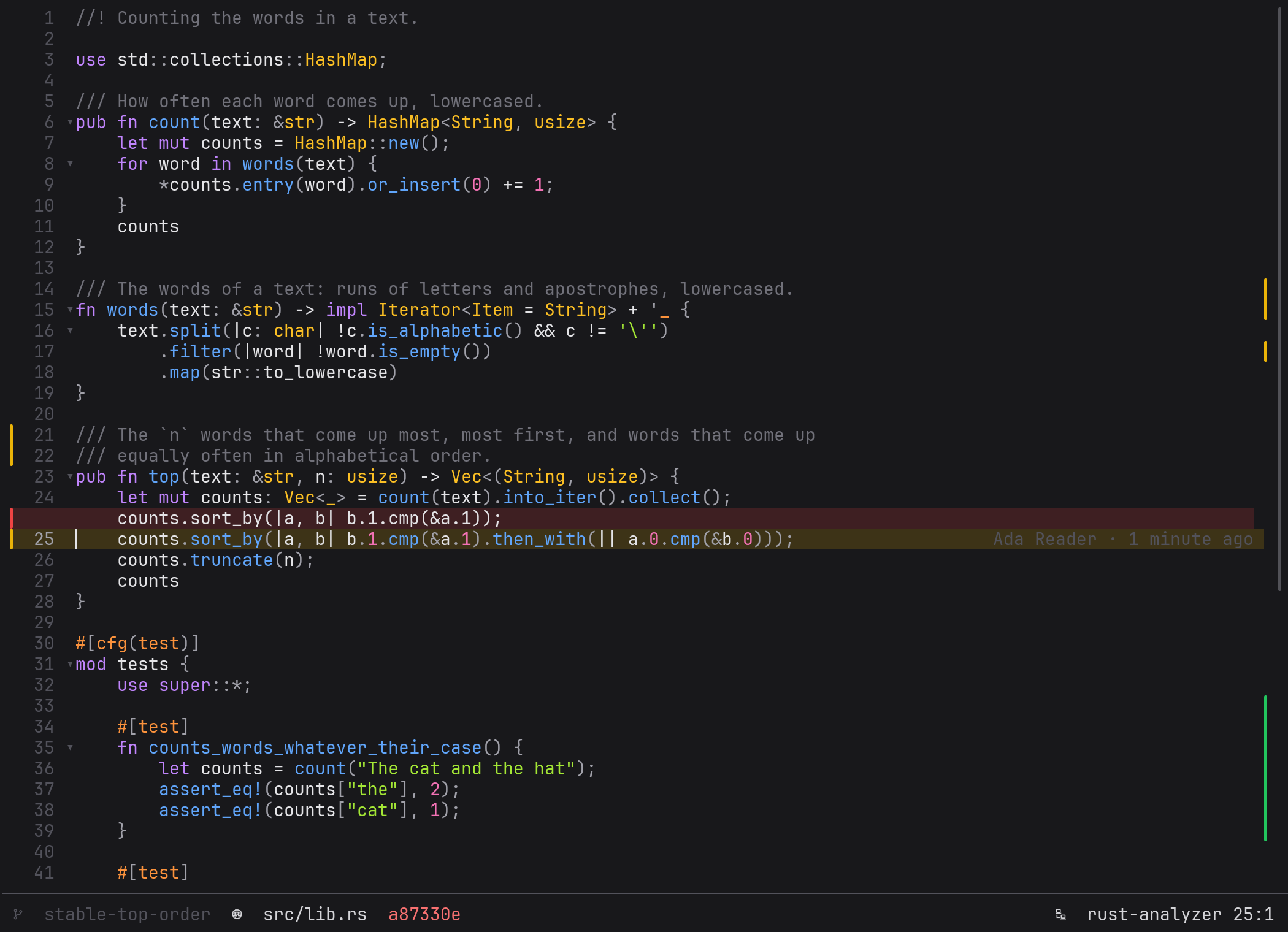
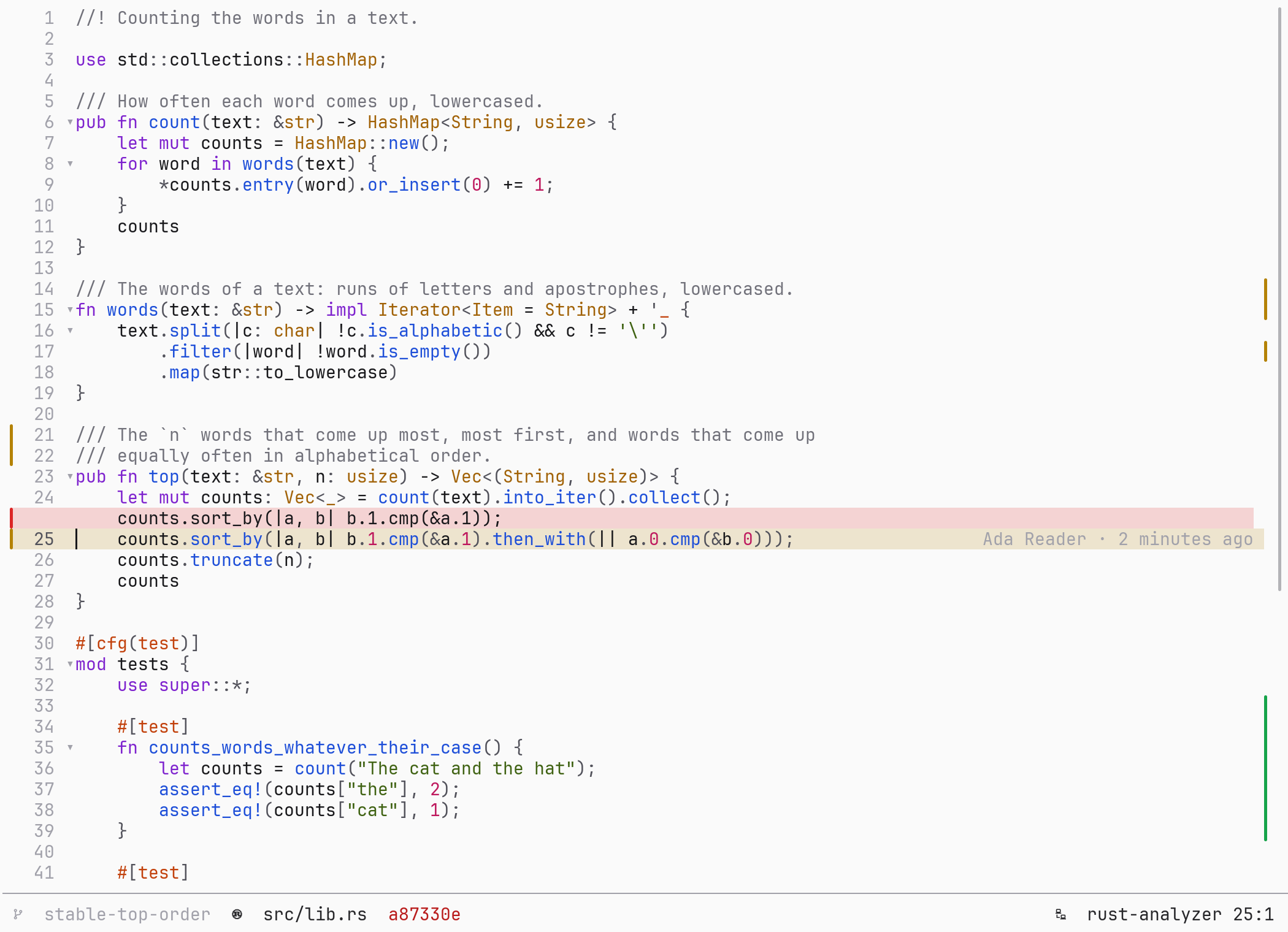
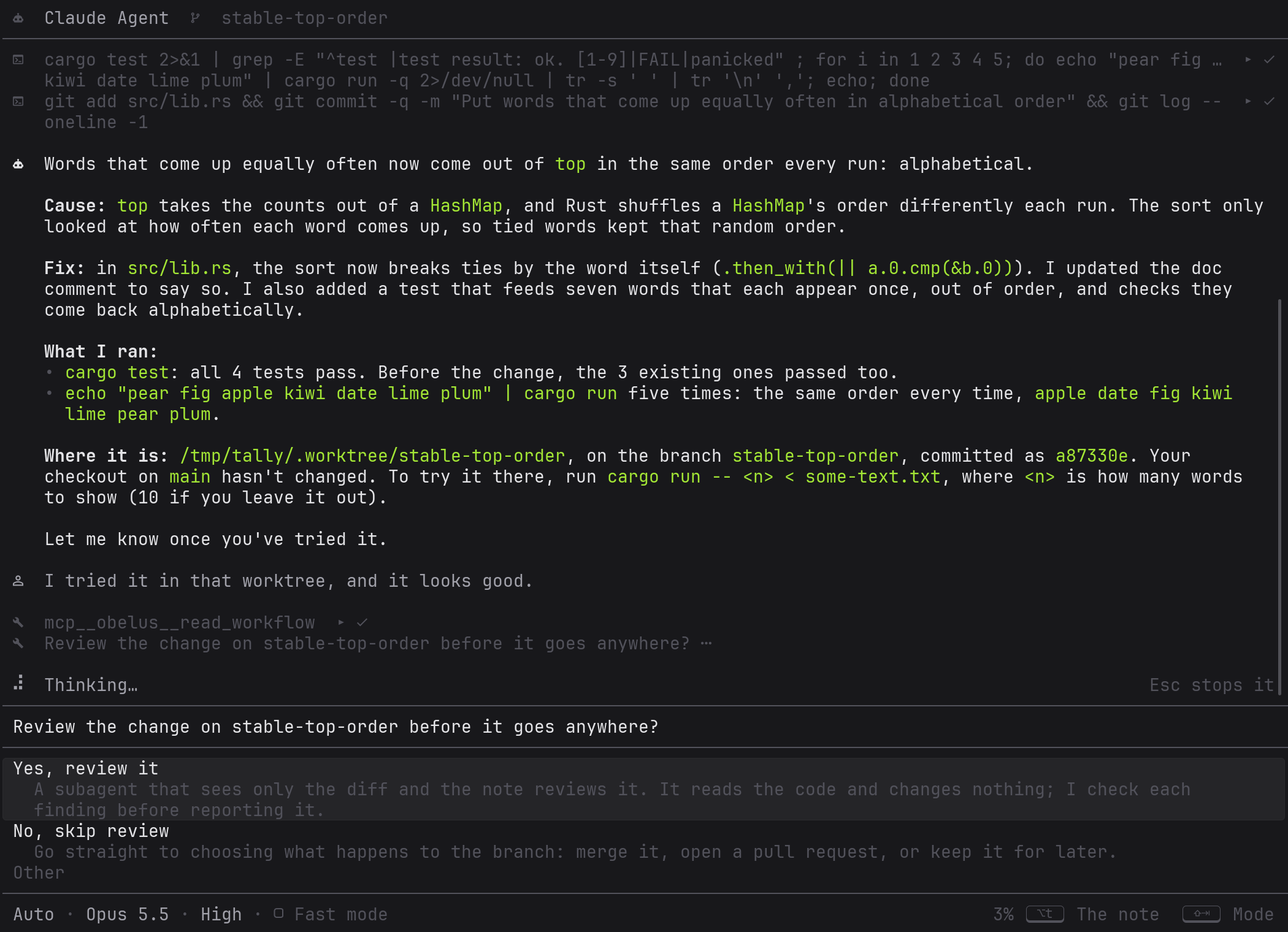
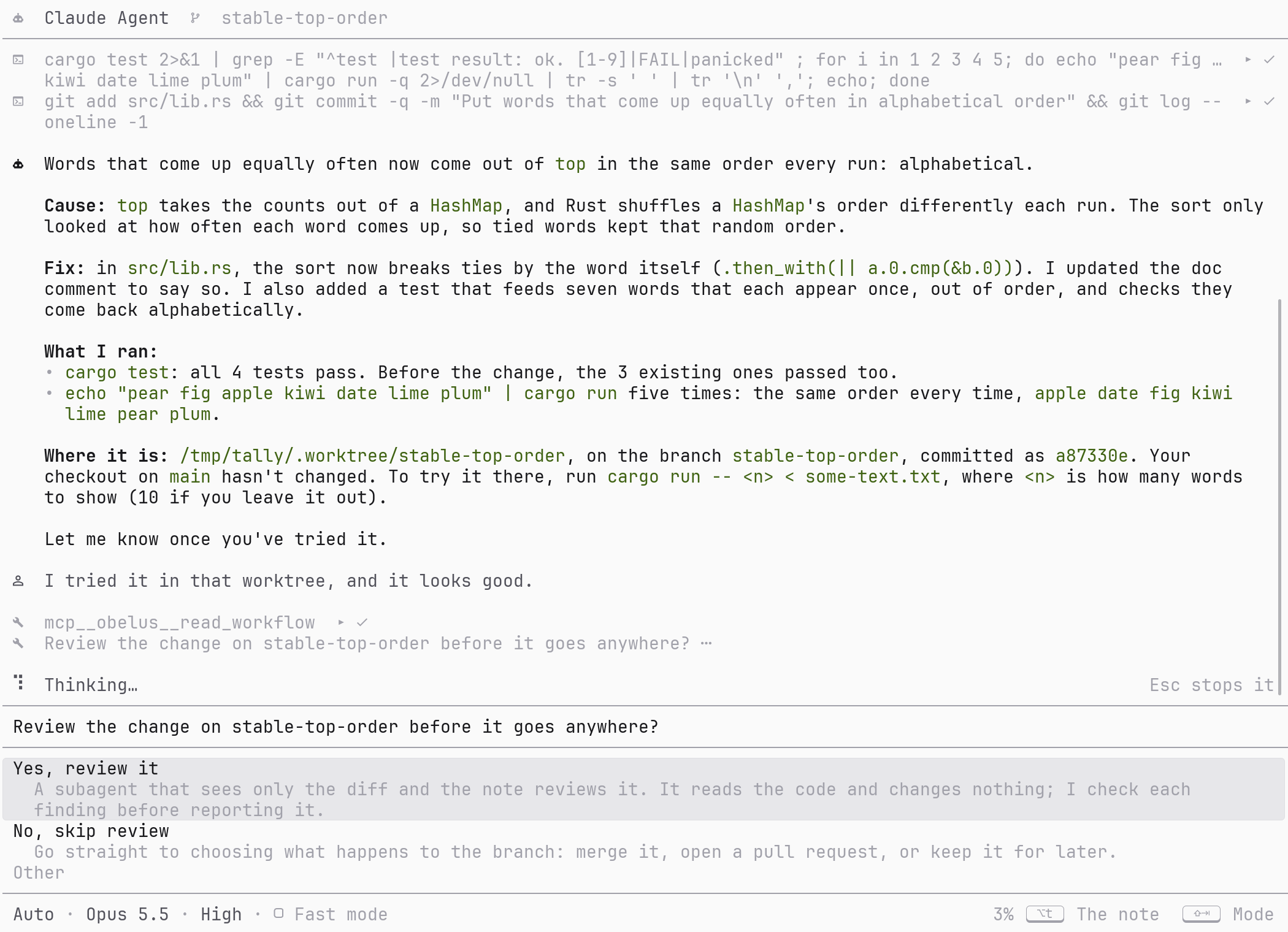
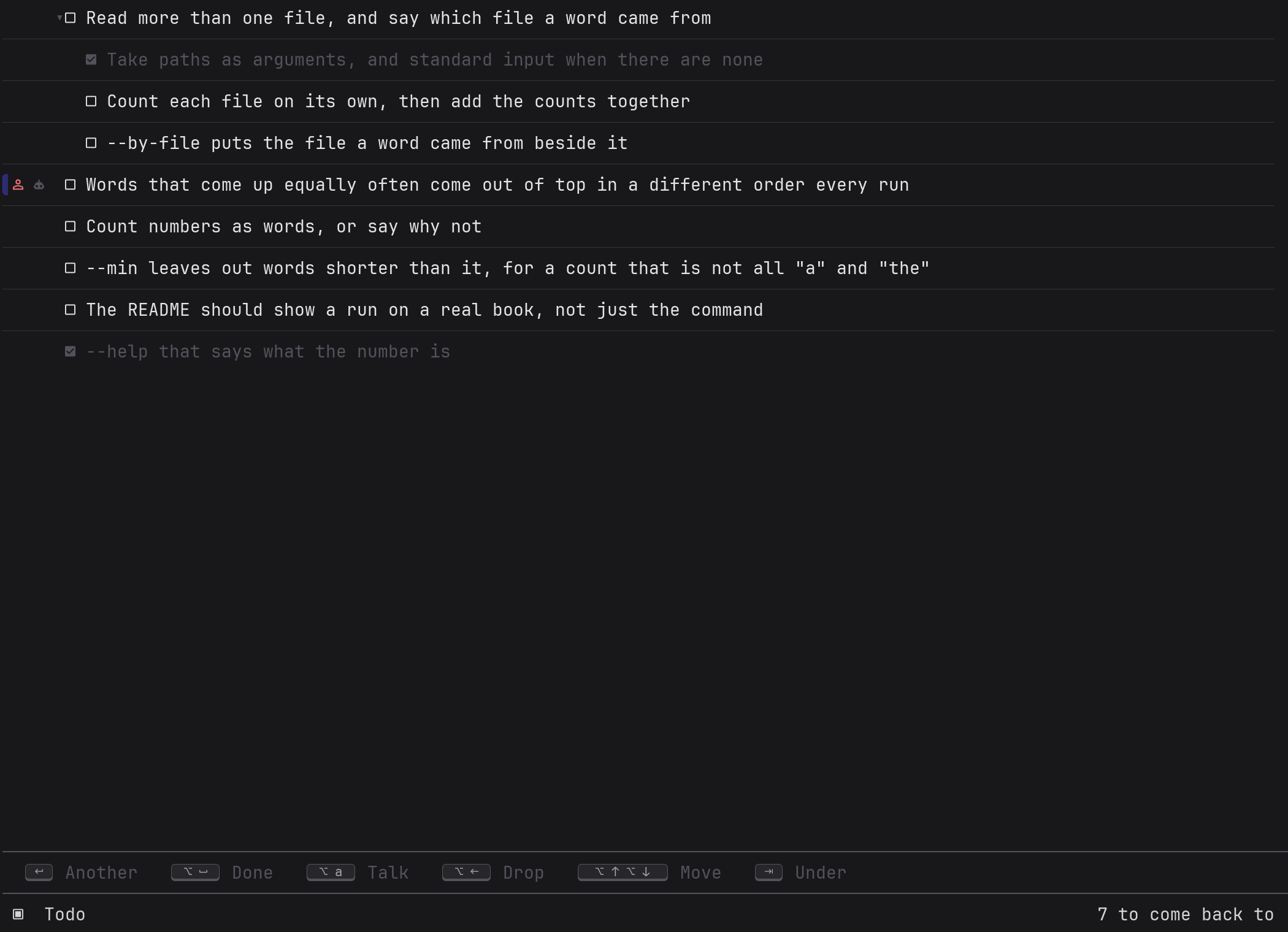
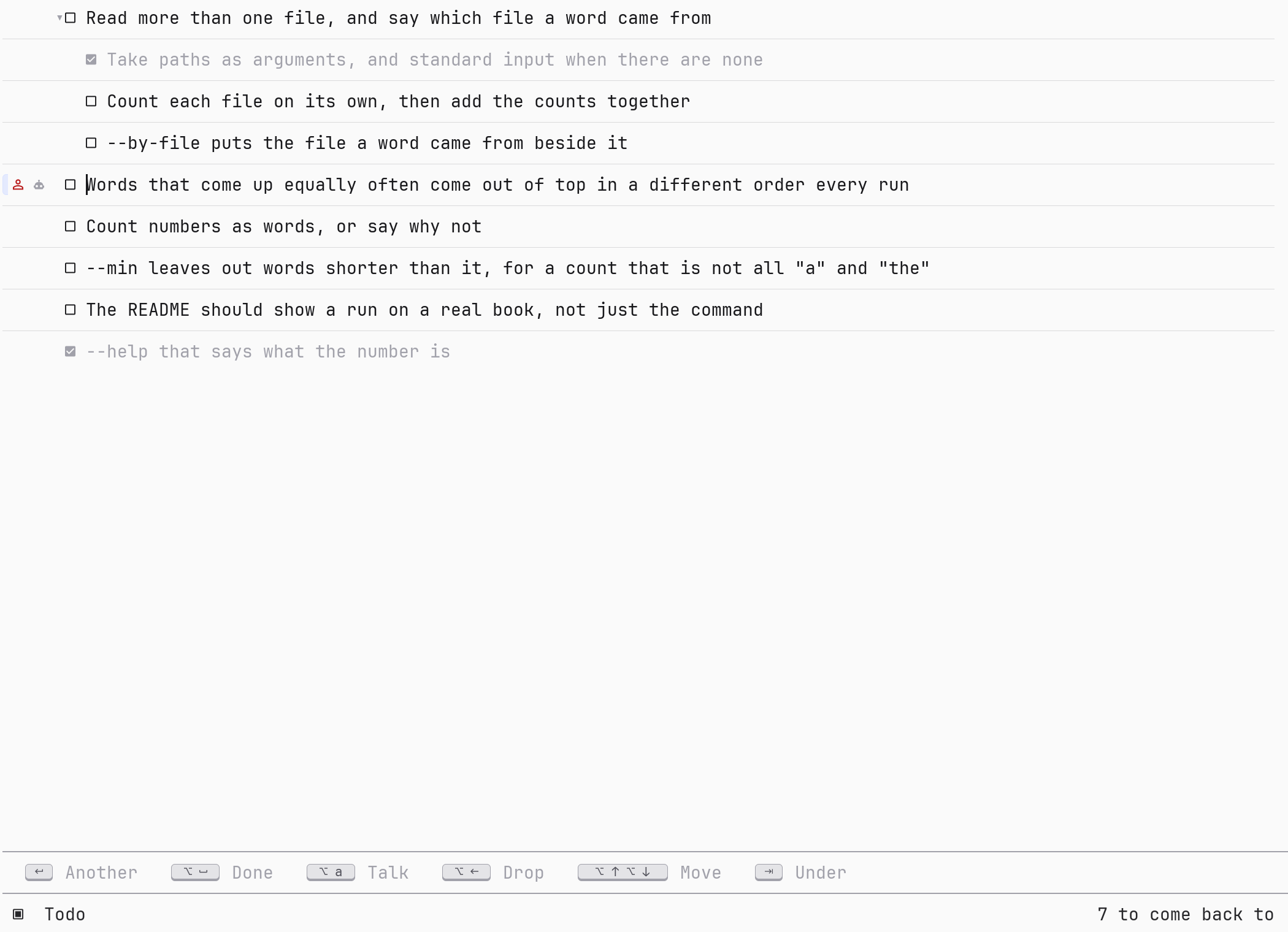
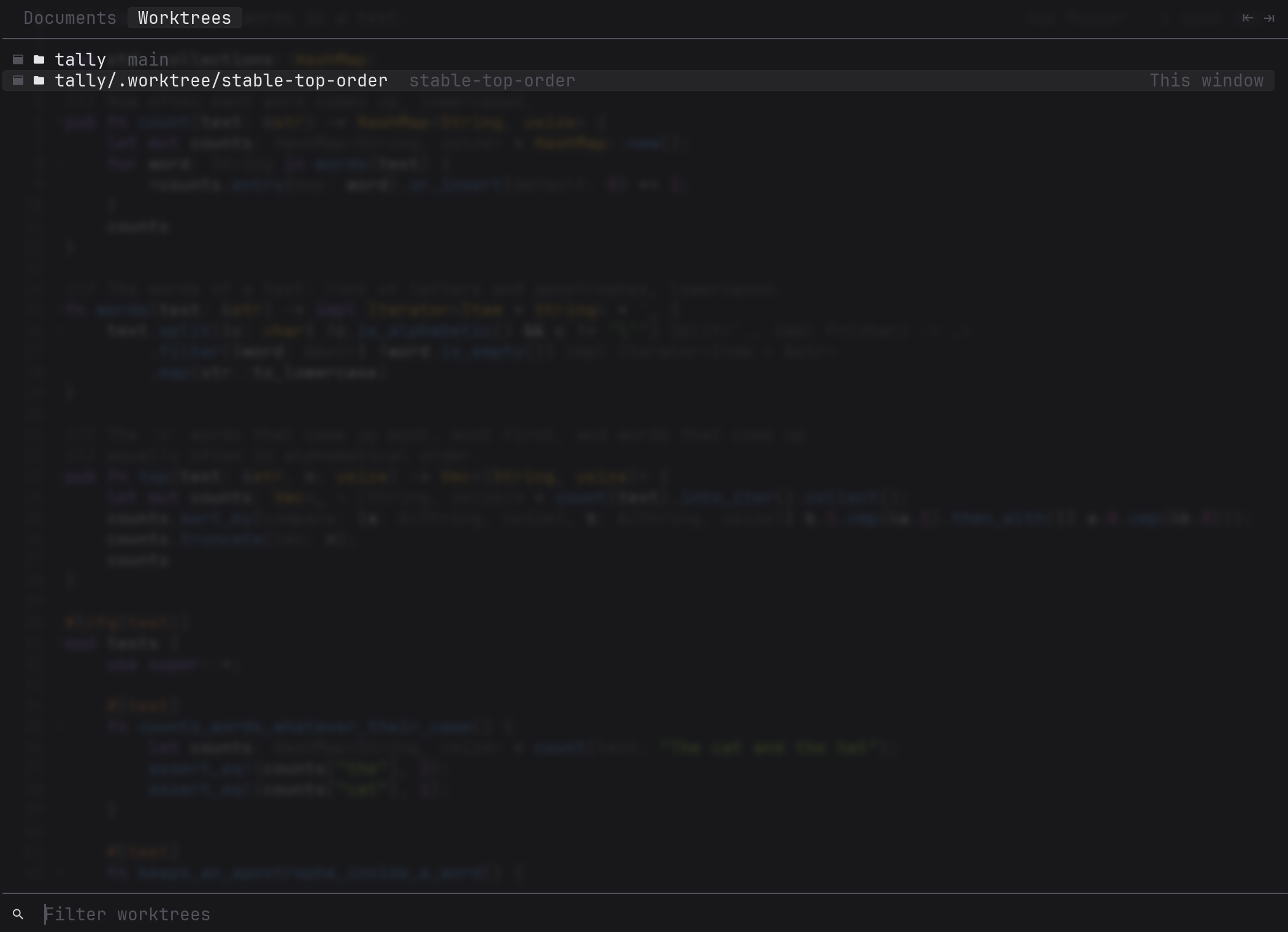
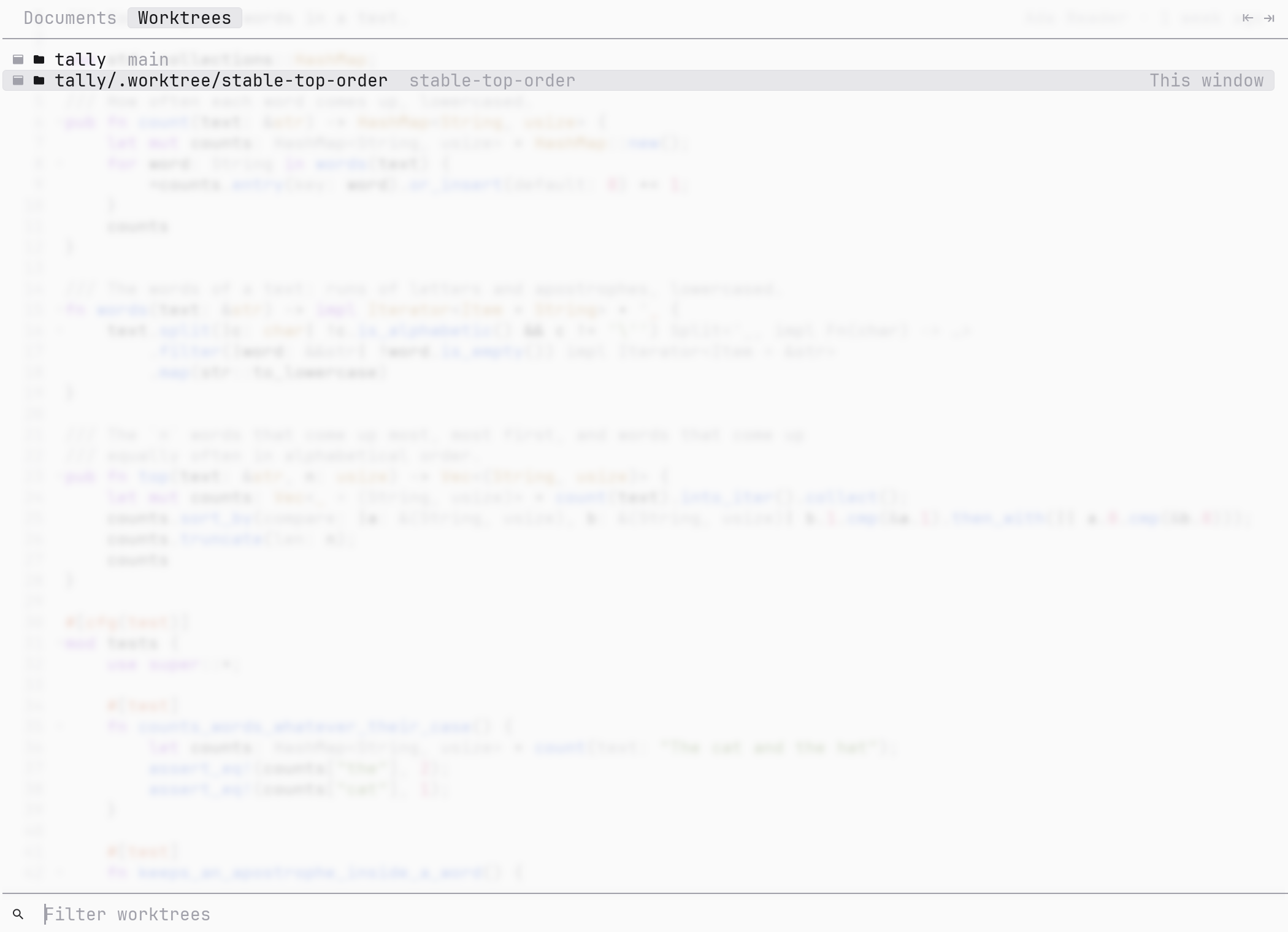
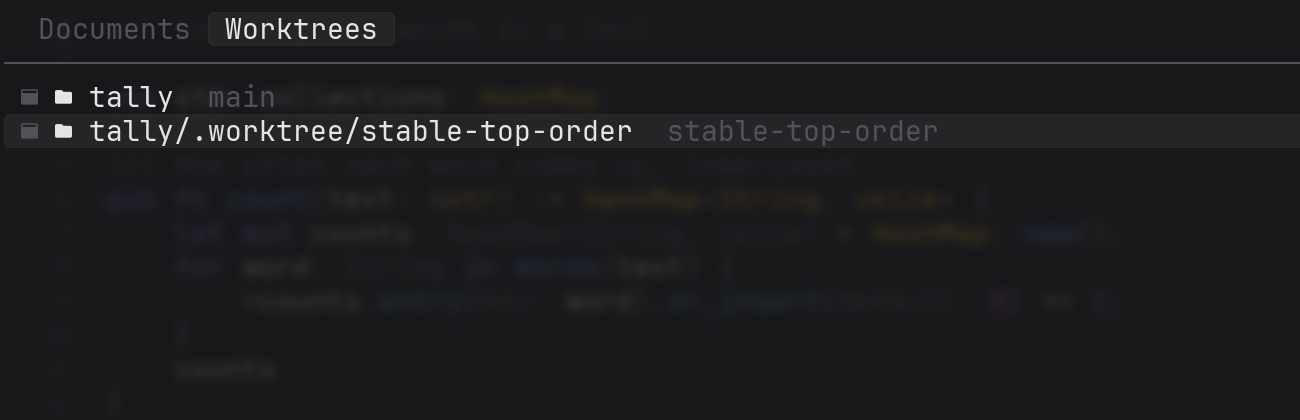
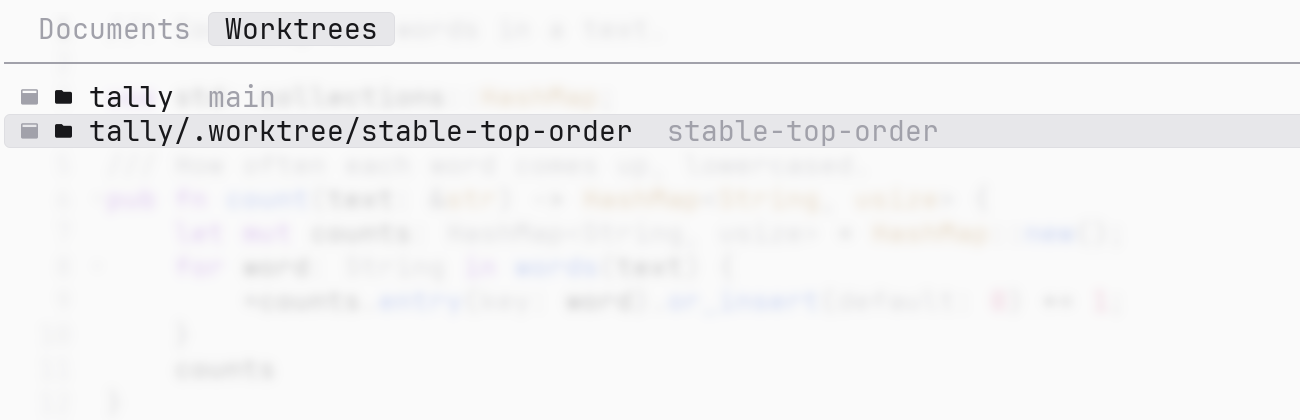
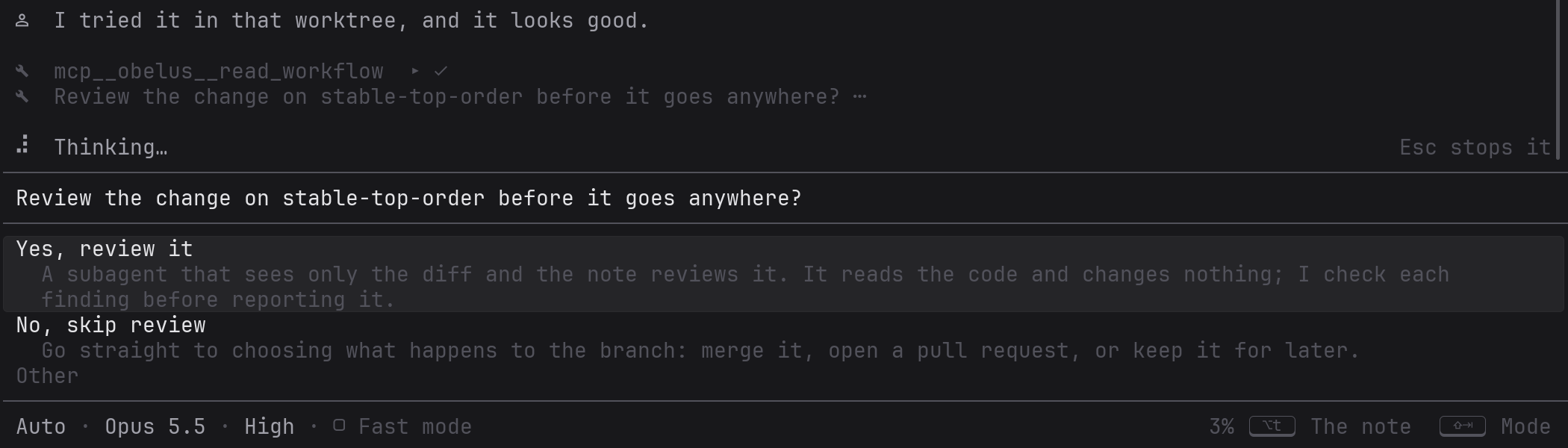
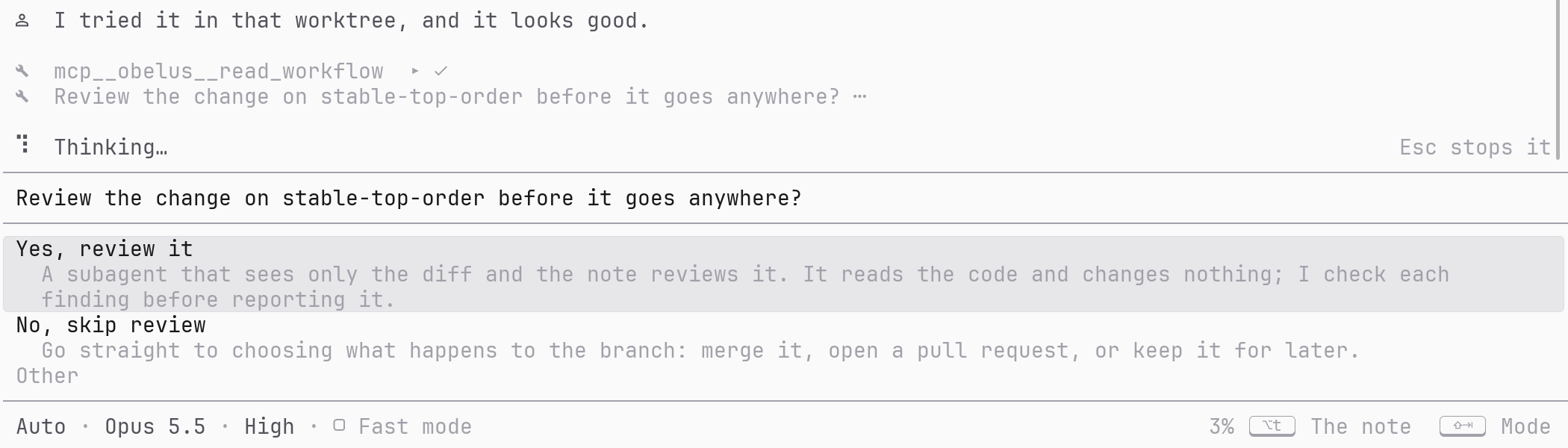
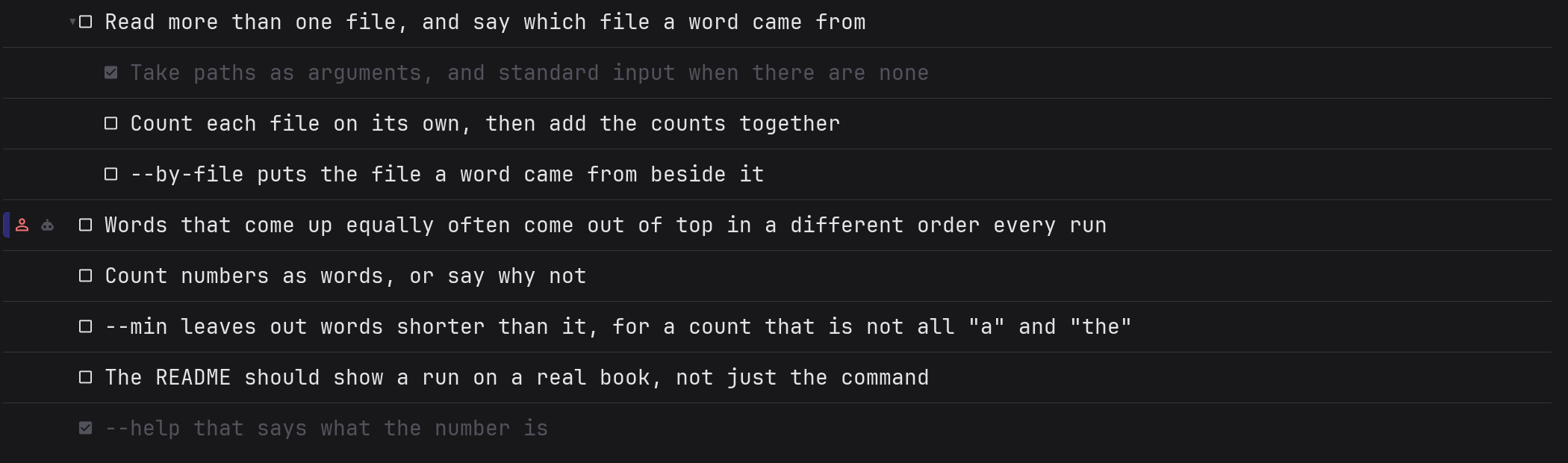
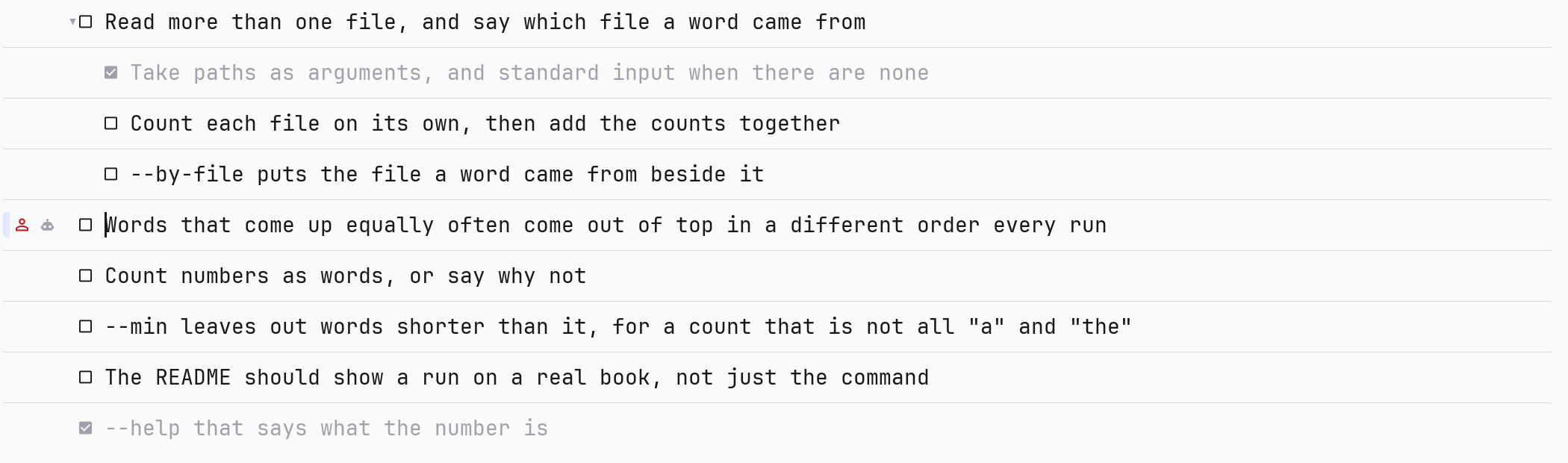
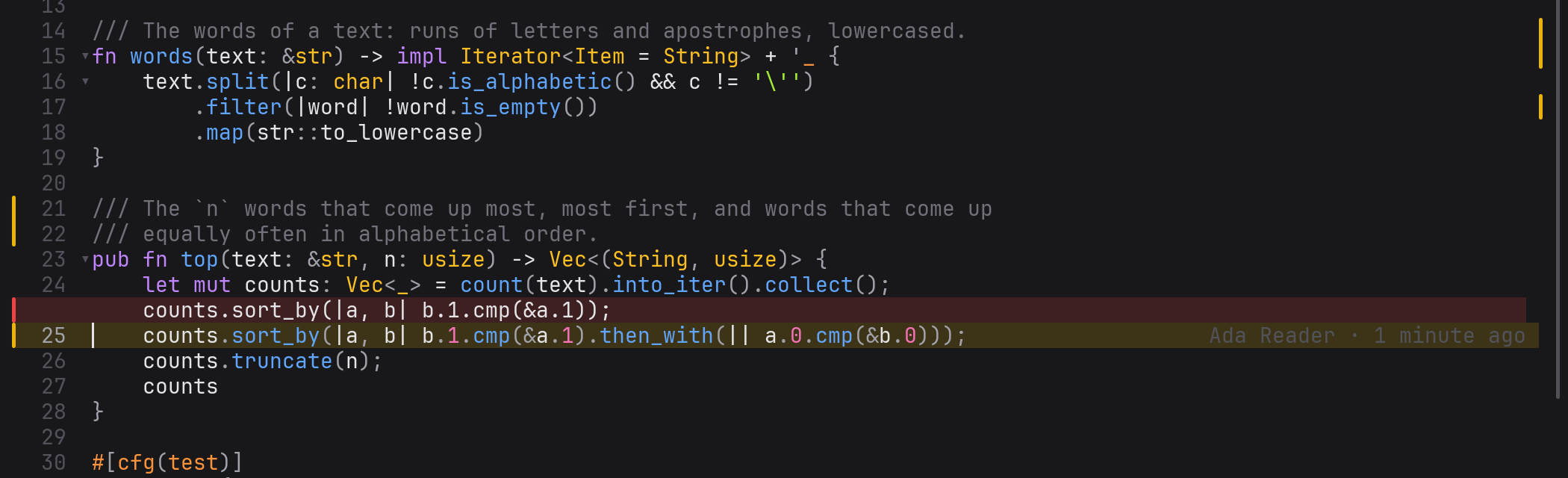
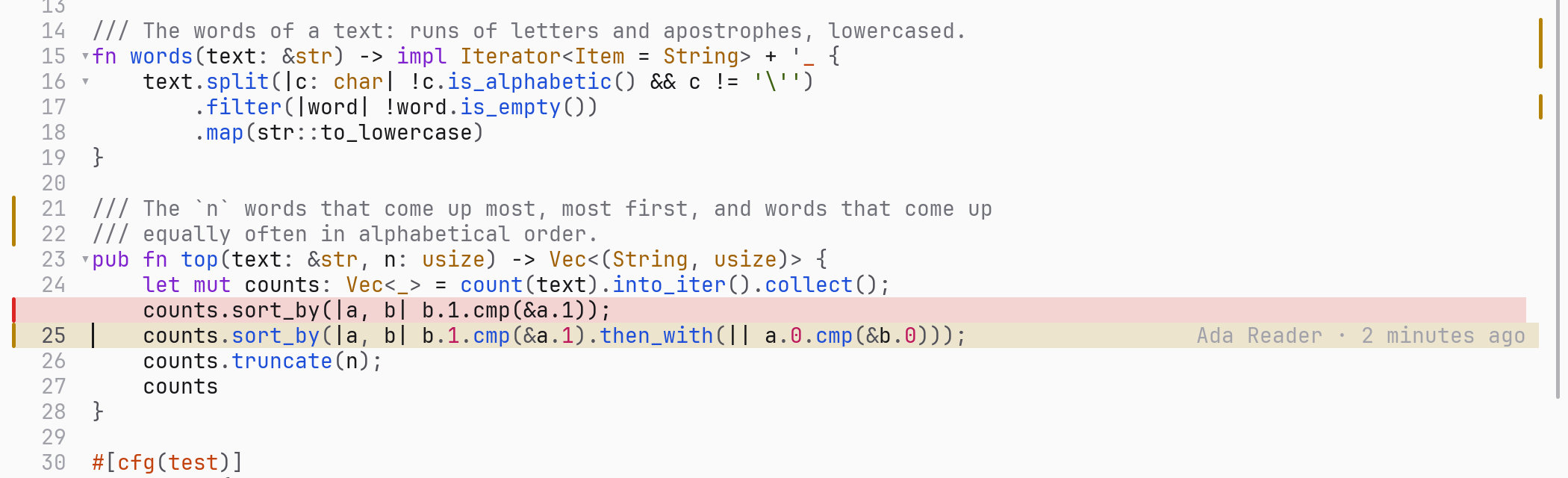
Reading a commit the agent made: the change opens right in the code, the old line above the new one, and the margin says who wrote each line.A conversation: the agent says what it changed and on which branch, waits for you to try it, then asks on a card whether to review it.The notes page: steps the agent worked out sit under their note, and a note with a conversation is marked.F2, then Tab: every worktree of the repository. Pick one to go there.
01Install
Pick your system, download the package and double-click it. To install with one command instead, or to get the terminal version too, read on.
These are all obg, the window version. For ob, the terminal version, use the script below or grab an archive from the releases page, which also lists every file's SHA256.
macOS: Obelus isn't notarized by Apple, so the first time you open it macOS says it can't verify the developer. Go to System Settings → Privacy & Security and click Open Anyway, or run xattr -dr com.apple.quarantine /Applications/Obelus.app in a terminal.
Windows: the installer isn't signed, so SmartScreen may stop it; click More info → Run anyway. The MSI installs into your own user folder without asking for an administrator, adds a Start menu entry and a PATH entry, and can be uninstalled from Settings → Apps.
Install with one command
The script downloads the latest release, checks it against the release's SHA256SUMS, and puts obg, the window version, somewhere on your PATH.
Linux and macOS
curl -fsSL https://raw.githubusercontent.com/obelus-editor/obelus/master/contrib/install.sh | sh
ob, the terminal version, is a separate program and you have to ask for it. On Windows you can't pass arguments through a pipe, so download the script first and then run it.
curl -fsSL https://raw.githubusercontent.com/obelus-editor/obelus/master/contrib/install.sh | sh -s -- --bin both
irm https://raw.githubusercontent.com/obelus-editor/obelus/master/contrib/install.ps1 -OutFile install.ps1
.\install.ps1 -Binary both
--bin ob installs only the terminal version, --dir says where to put it, and --help lists the rest.
On Windows the script adds its directory to your PATH and creates a Start menu entry (-NoShortcut skips it). On Linux it adds launcher entries and an icon under ~/.local/share so any app launcher can find it, omarchy's Apps menu included (--no-desktop skips them). If the directory isn't on your PATH, the script tells you which line to add.
To uninstall, use -Uninstall on Windows, or --uninstall on Linux and macOS. If you installed with --dir, pass it again. Your settings are left alone either way.
There's no window version on musl: the window loads Vulkan, Wayland and X11 at runtime, which a static binary can't do. The script says so and installs ob instead.
With mise, on any system
mise tool-alias set obg 'github:obelus-editor/obelus[matching=obg-]'
mise use -g obg
mise tool-alias set ob 'github:obelus-editor/obelus[matching=ob-]'
mise use -g ob
The first pair installs obg, the window version, and the second ob, the terminal version. Run both for both.
Each gets a name of its own so the two can sit side by side: mise keeps one tool per name, so installing the bare repository twice replaces the first with the second. matching picks which archive to download. mise upgrade keeps them up to date.
There's no launcher or Start menu entry this way, so start obg by name.
On musl, install only ob. mise doesn't check, and for obg it downloads the glibc build, which won't start there.
From source
All you need is a stable Rust toolchain (edition 2024).
git clone https://github.com/obelus-editor/obelus
cd obelus

# the window version, installed into ~/.cargo/bin as `obg`
cargo install --path crates/obelus-gui

# the terminal version, installed as `ob`
cargo install --path crates/obelus-cli

# or just build both: target/release/obg and target/release/ob
cargo build --release
Also worth installing
A language server for your language (rust-analyzer for Rust). Without one you can still read code; you just don't get go-to-definition, errors or an outline. Obelus starts none until you turn on language_servers in the settings.
A Nerd Font, if you want icons in the terminal version. Icons are off by default, so you won't see empty boxes without one. The window version has its own and needs nothing.
Run it
obg                  # no arguments: the welcome screen for this directory
obg src/main.rs      # open a file; its repository is the project
obg ../another-repo  # open a directory; that is the project
ob src/main.rs       # the same file, in the terminal
The first five minutes
F1 opens a file: type to filter, ↑↓ to pick, Enter to open, Esc to cancel.
The row of keys at the bottom of a list only shows what works right now, so it never offers a key that would do nothing.
Ctrl+p is the command palette. Anything you can't remember a key for, you can find by name.
Put the cursor on a change and press Alt+d: what was there before opens up in place.
See a line that looks wrong? Press Alt+t and write a sentence. Then Ctrl+t opens the notes: pick it and press Alt+a to talk it over with the agent. That's where the workflow below starts.
Ctrl+p → open-settings for colours, wrapping and tab width; choose-theme for the theme.
Ctrl+q quits.
Every key, command and setting is in the reference.
02The workflow
This is the main way to use Obelus: from an idea to a merged change. The agent works in its own worktree, so the code you're looking at never moves under you, and it stops to ask whenever there's a decision for you to make.
01
Write a note, or just start talking.
See a line that looks wrong? Press Alt+t on it and write a sentence. For something that isn't about one line, write it on the notes page (Ctrl+t). Or skip the note: F4 starts a new conversation straight away.
02
Work out what you want with the agent.
Pick a note on the notes page and press Alt+a to open a conversation about it. The agent already knows what the note says. Once you've agreed on the steps, it asks before writing them under the note.
03
The agent makes a worktree and gets to work.
Before changing anything, it creates a worktree and a branch under .worktree/, builds it and runs the tests once, so it knows everything worked before it started. Every change after that happens over there, and not a character changes on your side. The top of the conversation shows which branch it's on.
04
Look in on it whenever you like.
You don't have to wait until it's done. F2, then Tab, pick the worktree, and you're on that tree. Changes it hasn't committed yet are marked in the margin, and F3 lists the files it has touched. For changes it has committed, F9 lists the commits to the file, and choosing one opens the file as that commit left it, with what the commit did marked in the margin.
05
When it's done, it tells you where to try it, and waits.
It runs the tests again and tells you the directory, the branch, what it ran and what happened. That's the actual result, not "this should work". Then it waits. It won't go any further until you've tried it.
06
Once you're happy, it reviews the change.
When you say it works, it asks whether to review the code first. Where it can, it starts a fresh context so it doesn't review with the same assumptions it wrote the code with. It lists what it found by how much it matters, you tick what to fix, and it fixes them one at a time.
07
A pull request, followed all the way to merged.
Then it asks how you want to land it: merge it directly, open a pull request, or keep it for later. For a pull request it uses gh. It watches CI, tells you why a check failed, fixes it if you say so, and merges once everything passes. If gh isn't installed or signed in, it pushes the branch and gives you the link.
08
Then it cleans up.
After the merge it asks whether to bring your local branch up to date, whether to remove the worktree, whether to tick the note off, and whether to close the conversation.
Every one of those decisions shows up as a card in the conversation: arrow keys to choose, Enter to answer. The agent never pushes, merges, deletes or ticks anything off on its own say-so.
This workflow is the default. If you'd rather the agent edited the files in front of you, set workflow to in-place in the settings. The steps are the same but there's no worktree, and every change can be undone with Ctrl+z. Set it to none and the agent works however it likes. Obelus itself never runs git: every git command above is run by the agent.
Every worktree, one key away
Obelus has no split panes. To see two pieces of code side by side, you open two windows. So it's normal to have several Obelus windows on one project, each on its own worktree. F2 then Tab lists every worktree of the repository, and under each tree a row for every Obelus on it, saying what it's reading. Moving this Obelus onto another tree asks first about anything unsaved, and reopens what you had open there last time.
In the terminal version, ob, that's Enter on the tree, and it's the only key there is: ob can't open a new terminal for you or bring another terminal window to the front. In the window version, obg, it's Ctrl+Enter, because Enter goes to another window instead: on a tree it opens a new one there, and on a window it brings that one to the front.
All the worktrees of a repository share one set of notes. What you write in one window shows up in the others straight away.
A conversation can only be open in one window at a time, so two windows can't talk over each other.
Before saving, Obelus checks the disk. If another window, the agent or a formatter changed the file, you won't silently overwrite it.
The rest of what happens with several windows open is in the reference.
03The editor
Bring the agent you already use
Obelus has no model of its own. It talks to the agent you already use over ACP, the Agent Client Protocol. If you don't have one yet, press F4, start a new conversation, and install one from the agents page.
A question for you is a card: arrow keys to choose, Enter to answer.
A conversation is an open document, like a file. Leave it today and pick it up again tomorrow.
A conversation started from a note stays with that note. If you change the note, the agent is told what changed.
The agent asks before it adds steps under a note, ticks one off, or rewrites one.
What the agent has already changed, you read in the file, marked in the margin. Only what it's still asking to do stays in the conversation.
Notes that stay pointed at their line
Press Alt+t on a line to write a note about it; Ctrl+t opens them all. A note can be about a line or the whole project, and notes can sit under other notes. A note remembers the commit it was written at, so a note from last week still finds its line however much the file has changed. Notes live in Obelus's own directory, not in your repository, so every worktree sees them and they never end up in your commits.
Steps the agent worked out, sitting under the note they belong to.
Read changes right in the code
Whether the agent made a change or you did, you read it in the file: the margin marks which lines changed, Alt+d opens the old code in place, and pressing it again closes it.
A commit the agent made, opened at the line it changed: the old line in red above the current one.
Git
Changed lines are marked in the margin, matching git diff
Next to the scrollbar, a map of where the file's changes are
Alt+d opens or closes a change; Alt+p / Alt+n jump to the previous / next one
The margin shows who last changed each line (you can turn it off)
F9 for the file's history, F10 for the project's; a commit opens the file as it left it, and commits not pushed yet are marked
Read-only: Obelus never changes your repository and never runs git for you
Window or terminal
obg is the window version and ob the terminal version, like gvim and vim: the same screens and the same keys
The window can tell apart keys a terminal can't, like Ctrl+i and Tab, Ctrl+m and Enter, Ctrl+[ and Esc; most terminals send nothing at all for something like Ctrl+Shift+X
The window carries its own icon font, so there's no Nerd Font to install and no empty boxes
In the window, the cursor and lists glide instead of jumping, and an input method shows what you're typing as you type it
Asking about the code
Go to definition, find callers, see a type, see errors: all answered by the language server you already have, like rust-analyzer, gopls, clangd or pylsp
One search screen at different ranges: F5 this file, F6 the whole project, F8 function and type names; Alt+← jumps back
A mistake in your settings file is marked on the line it's on, like a compiler error
No modes: every key does what it says
There's no insert mode to get into before you can type. It works like VS Code or Emacs, not like vim or helix. The pattern is simple: function keys open something to look at, Ctrl does something to the current file, and Alt asks about what's under the cursor. Can't remember a key? Ctrl+p finds any command by name, and wherever a list has keys of its own, the row along the bottom says what they do. The full table is in the reference.
04Everything in it
Those are the parts that make Obelus different. This is everything it has, and each row goes to where the features page explains it, key by key.
Opening and switching. A file tree, what is open, the files that changed, a page that asks which project, and what was open last time, opened againOpening ›
Reading. Changes and who wrote the line in the margin, folds, markdown and logs laid out, two dozen languages highlighted, the project's lines countedReading ›
Finding. One search for this file, every file or every name; the outline; back and forward over every jumpFinding ›
The language server. Definitions, references, who calls what, hover, completion, code actions, rename, problemsLanguage server ›
Git. Changes opened in place, file and project history, a file as any commit left it, pull requests and issuesGit ›
Notes. Pointed at a line, found again after the file changes, shared by every worktreeNotes ›
The agent. Any ACP agent, installed from a list; conversations you take up again; its questions on cards; pictures; tools of Obelus's ownThe agent ›
From a chat. The same conversations from Slack or Feishu on your phone, or an Obelus with no screen at allFrom a chat ›
Worktrees and windows. Every worktree and every window on it, one key away, and build jobs shared between themWorktrees ›
Terminal. Your shell, as a document of its ownTerminal ›
Keys and settings. A palette for every command, any key rebound, themes, a settings page, a project's own settingsKeys & settings ›
05Who it's for
Obelus is built for one particular way of working. If most of this sounds like you, it should suit you:
An agent writes most of your code, and your job is reading it, judging it and deciding what's next
You often have several things going at once, with more than one worktree of the same repository
You want your to-do list next to the code, not in another app
You don't want to learn modes; arrow keys, Ctrl+c and Ctrl+z should just work
You open several windows and let your terminal or desktop arrange them
06What it doesn't do
These are left out on purpose, not because nobody got round to them.
No multiple cursors, no macros. Big edits are the agent's job now. What's here is what you need to fix a line or two while reading.
No split panes. To see two files side by side, open two windows. Your terminal or window manager arranges them better than an editor can.
No modes. No vim or helix keys, and no setting to turn them on.
No Git writes of its own. Obelus only reads Git. Committing, pushing and merging are done by the agent, and only after asking you.
One agent at a time. With two, every question would have to say which agent it's for.
No model of its own. It uses the agent you already have.
If one of those is exactly why you'd pick an editor, Obelus probably isn't for you. That's fine: it wasn't built for that.
07Principles
The rules trade-offs are checked against. Most were written down after getting something wrong once.
01
Built for a way of working, not a feature list.
A feature is here because the work actually needs it, not because other editors have it.
02
You can see what the agent does, and undo it.
When the agent edits a file, it's like you editing it: Ctrl+z undoes it. A command it runs can't be undone, so the command is shown exactly as it was run, with all of its output, and the key that stops the agent stops the command too.
03
Done changes are in the file; requested ones are in the conversation.
Once the agent has changed a file, the margin already shows the difference, so the conversation doesn't show it again. What it's still asking to do stays in the conversation.
04
Files change while you read them. That's normal.
The agent edits a file, a formatter runs, the branch switches. Obelus reloads on its own and keeps your place. If a file is deleted, it's marked [stale] and its contents stay on screen.
08Why it exists
Honestly, I wrote it for myself. Every trade-off asks "does this work for me?" before "will someone skip it for lack of feature X?" — so the habits on this page are mine.
I never got used to vim. Modes, hjkl, colon commands: muscle memory for the people who have it, and something I had to think about every single time. I wanted to open it and read: arrow keys are arrow keys, Ctrl+c copies, and there's no mode to get out of first.
And the way I write code has changed. Most of it is written by Claude Code and Codex sessions now. What I do at the screen is read, check, mark what looks wrong and decide what's next, and I want my to-do list right beside the code. The terminal editors compete on features. Obelus is an editor too, but it goes another way: the syntax tree, Git history, the language server and the agent, put together the way I work.
And the name: an obelus (÷, †) is the mark scholars put in a manuscript's margin beside a line they doubted. It's a mark a reader makes while reading.